Swipe
Left for the next page, right to go back.
 Get one
Support
Getting started, making it yours, and answers to common questions. Most things live in the Beach Life app on your phone.
Set up
About two minutes. All you need is your Wi-Fi password and your phone.
Set the display in its stand and plug a USB-C phone charger into either port on the left side. Any charger rated 5 V / 2 A or more works.
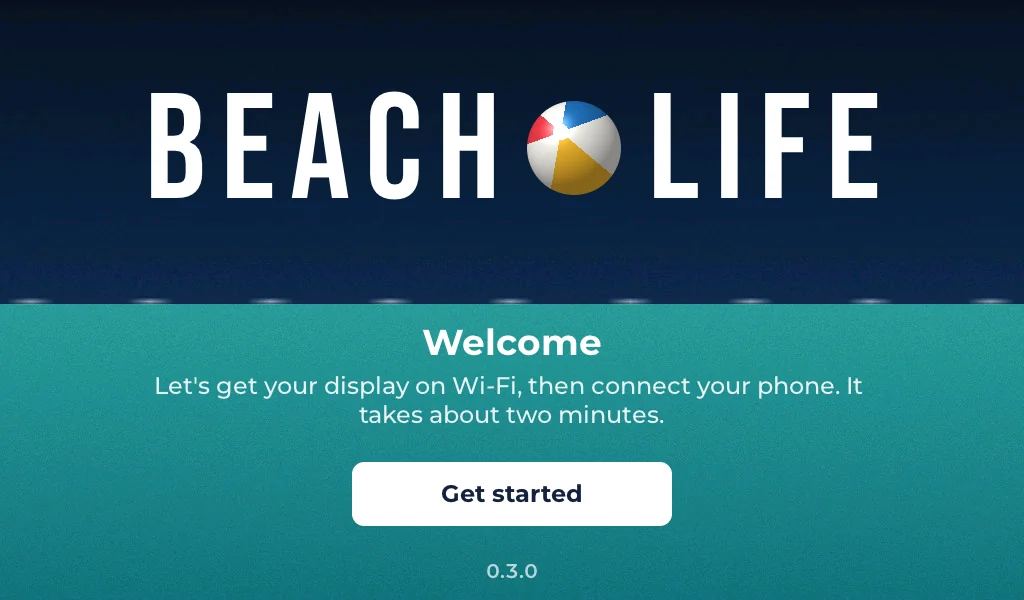
Tap Get started, pick your network and type the password on the screen. The display remembers it.
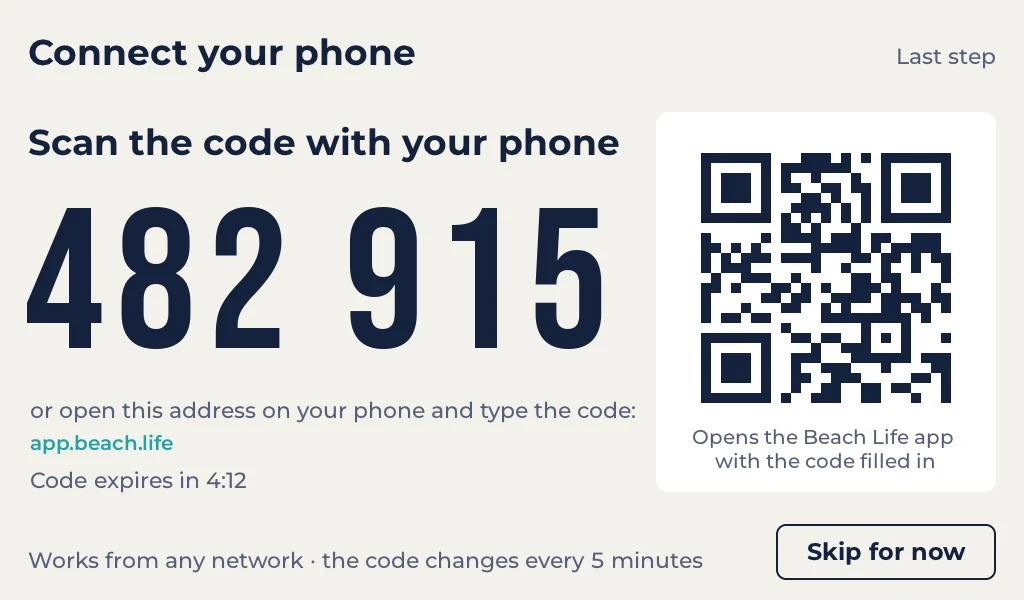
Point your phone's camera at the QR code and tap the link. Or open the address on the screen and type the six digits.
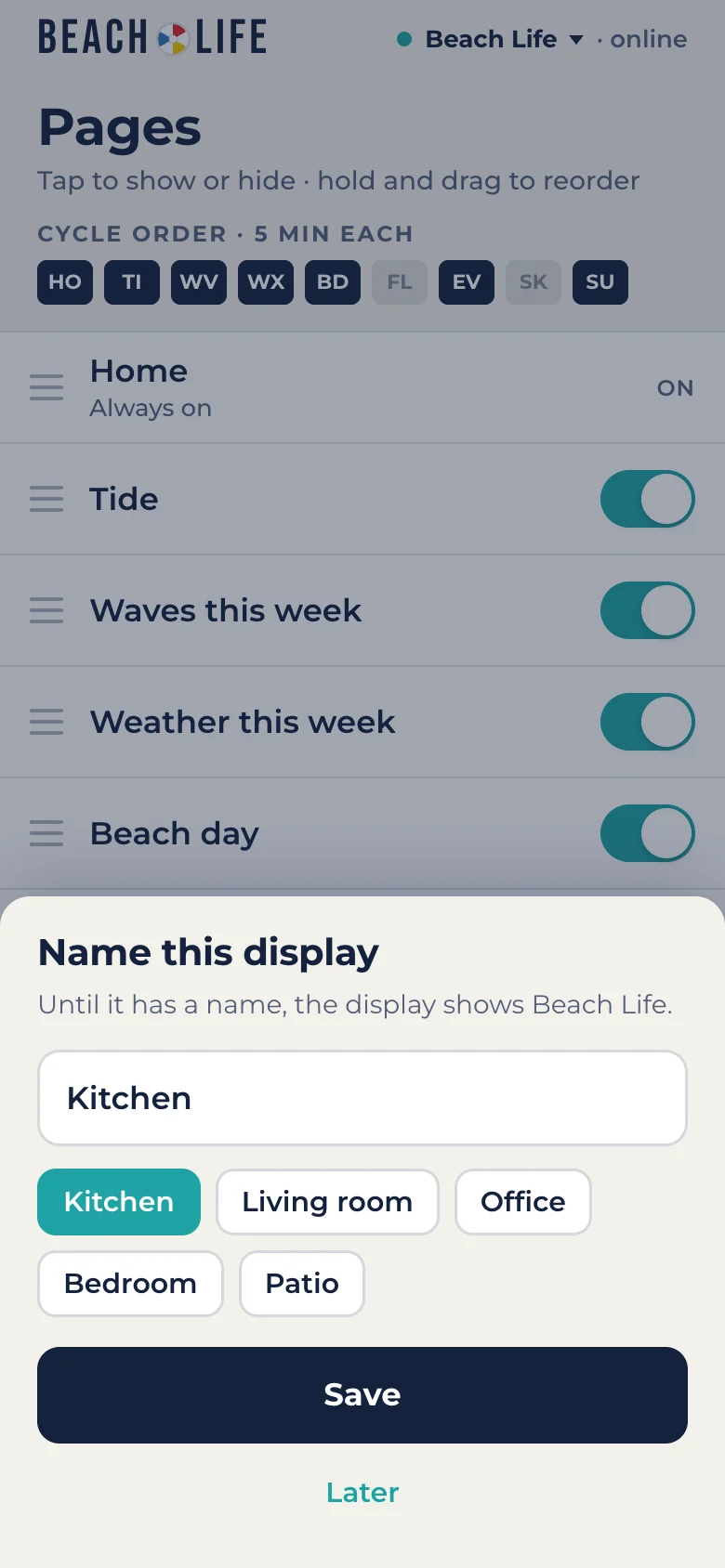
Your phone asks what to call it. That's it: the display starts its cycle, and your phone can change its pages, favorites and settings.
How to
Favorites, pages and settings are in the Beach Life app on your phone. A few things work right on the display.
Picks stay. Whenever that act or venue is on the calendar again, it's at the top. The app shows today's shows, so star a band on a day they're playing. To see all your picks, or take one off, tap Your picks. Up to 24 acts and 24 venues.
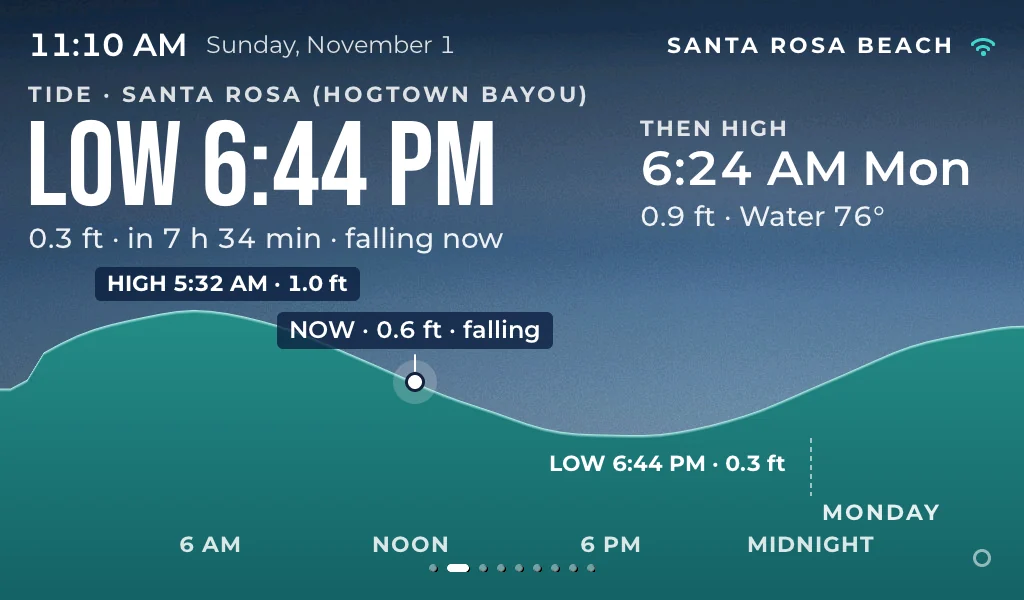
The display catches up within 30 seconds. Two pages come and go on their own: a second Events page on busy nights, and the Moon view after sunset.
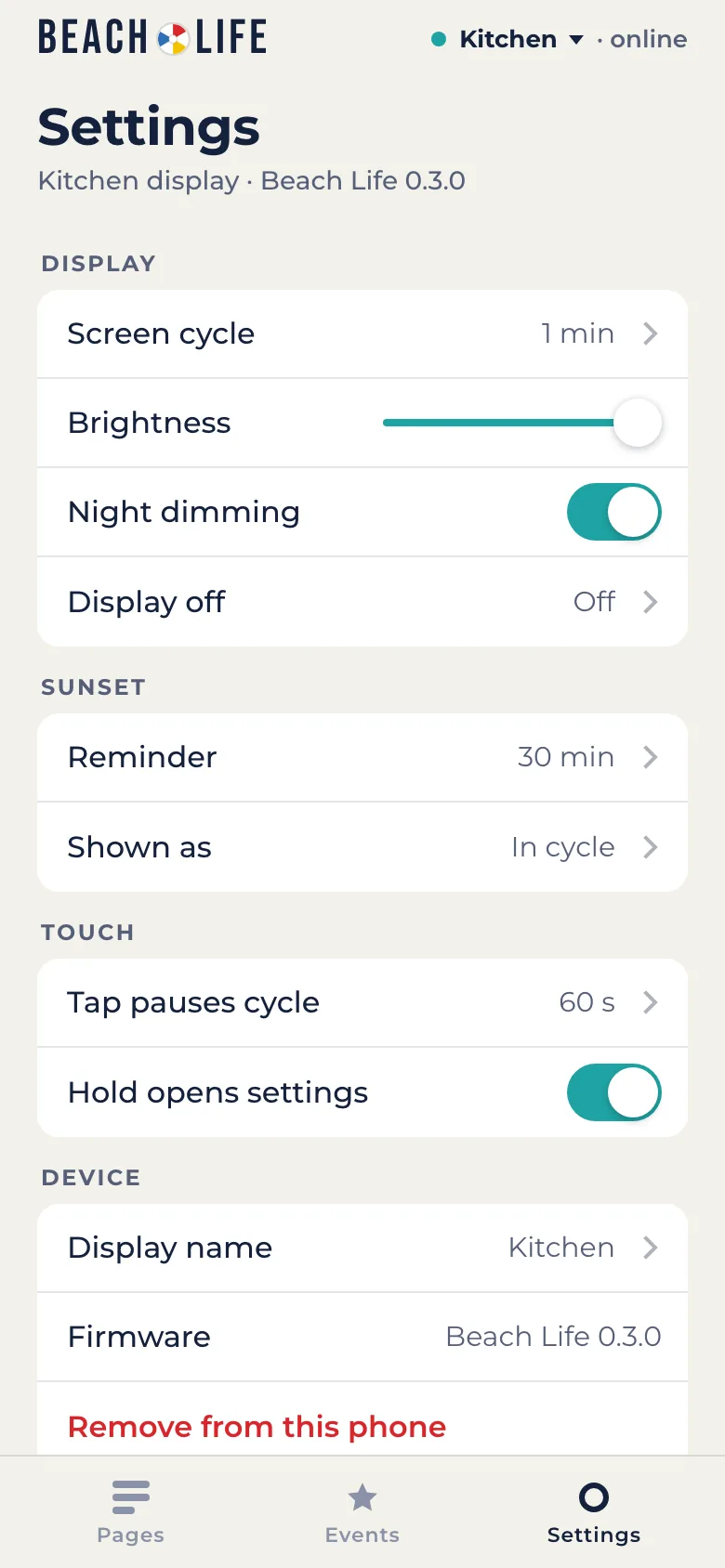
Tap Settings in the app. Changes reach the display within 30 seconds.
Left for the next page, right to go back.
The pages pause for a minute and a button for every page appears along the bottom. Tap one to jump straight to it.
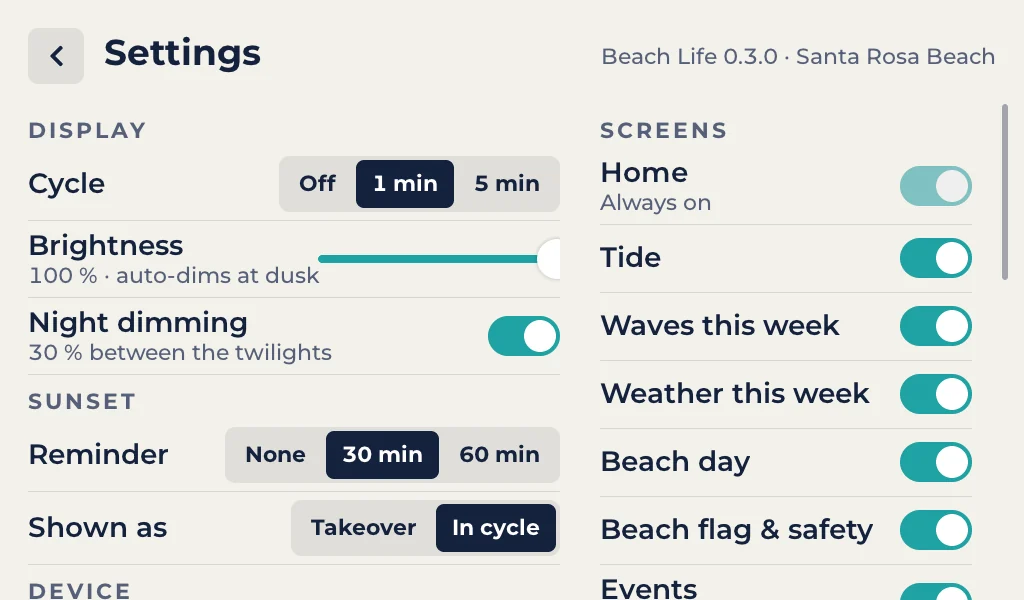
Opens Settings. So does the small circle in the bottom-right corner.
Settings on the display has the same switches as the app, plus Check data now, Connect a phone, nightly updates, and About with Reset to new.
Help
Turn the display off and on. If it can't find its saved network, it shows the network list so you can pick the new one.
The display keeps showing the last data it had, with the time it was checked. Check that your Wi-Fi is up; it retries every 30 seconds and catches up by itself.
New versions install themselves overnight, around 3 AM. If an update doesn't work, the display goes back to the version it had. You can turn nightly updates off in Settings. What changed in each version is in the release notes.
On the display, tap the screen, then the gear, then Connect a phone. Each phone in the house can control the same display.
Tap the display's name at the top of the app to switch between them. To add one, tap Add a display there and type the code from the new display.
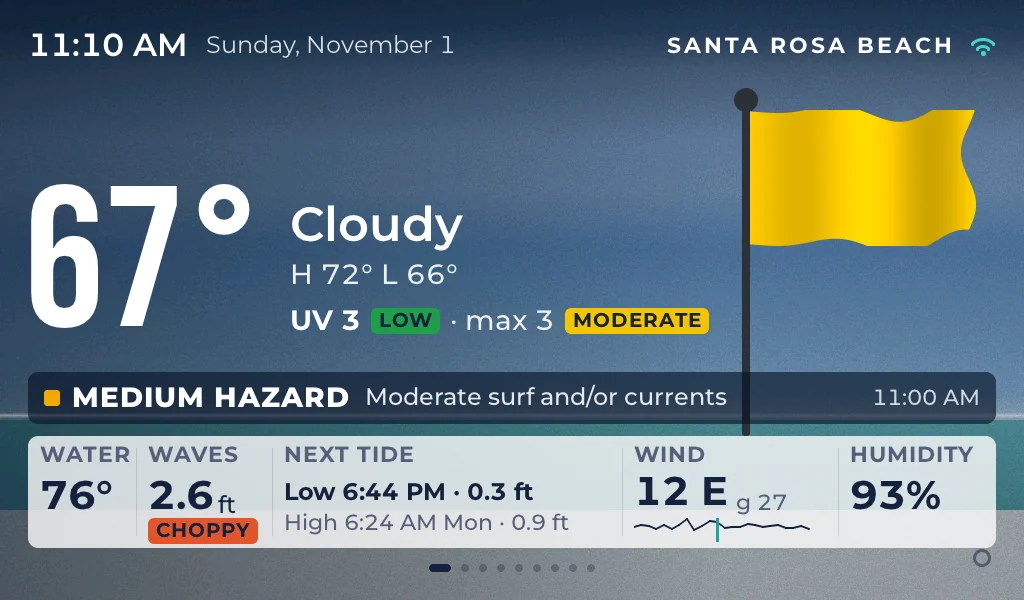
An alert from the National Weather Service for the South Walton beaches or the water off them, like a rip current statement. It shows when the alert ends and today's rip current risk, and goes away on its own.
Green: low hazard. Yellow: medium hazard. Red: high hazard. Double red: water closed to the public. Purple: marine pests. The flag comes from the South Walton Fire District.
Settings, About, Reset to new erases the Wi-Fi, settings, favorites and phones, and the display starts at the Welcome screen.
Contact
Questions about your display, an idea for a new page, or anything else. We'll reply by email.